Showing posts with label Tip IT. Show all posts

Saturday, June 9, 2018

Useful Windows Command Prompt Tricks You Might Not Know

Very often we discuss the Command Prompt in our Windows 10 tutorial posts. There exist tons of Windows Command Prompt tricks that you can learn, use, and impress your friends.Here, we are going to tell you about such interesting Command Prompt tricks.

To some of you, Windows Command Prompt might look like a black and white world. But, the experienced users know the power of Command Prompt and use its different tweaks and tricks. So, to make your Windows Command Prompt experience better, in this article, we are going to tell you about some useful Command Prompt tricks that’ll save some extra clicks.

Useful Windows Command Prompt Tricks

1. Command History
Using this command, you can track down your command history. This will turn out to be useful when you are trying to look for some command that you’ve used in the past, but can’t remember.
>doskey /history

2. Run multiple commands
If you are feeling the need to run two commands after another, you can do so easily. You just need to put “&&” between each command and save some time. For example, here’s how to run ipconfig and paint
>ipconfig && dir

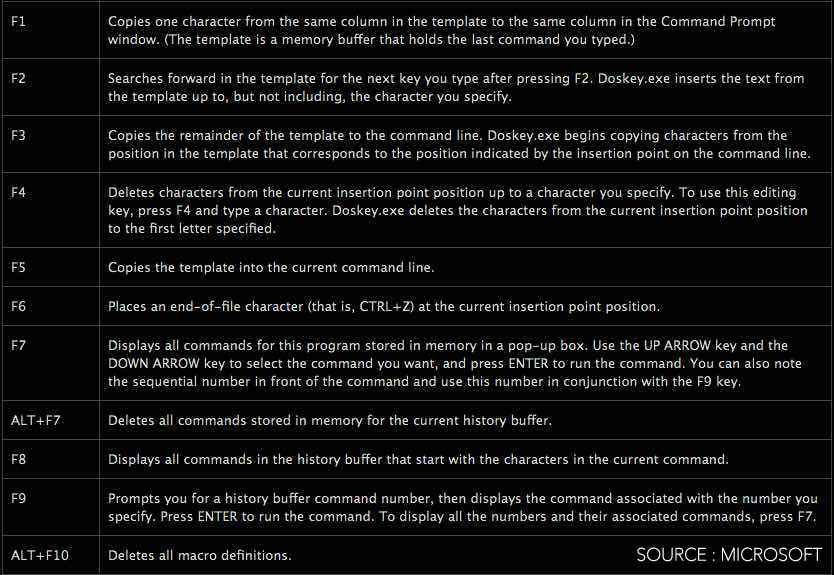
3. Use Function keys and become a pro user
Few people know about the killer usage of the function keys in Windows Command Prompt. Here’s the list:


4. See PC driver list

Using a simple command, you can see all the drives installed on your computer. All you need to do is run driverquery command and you’ll be seeing a list of all the drivers along with their name, type, and other information.
>driverquery

5. Send an output to clipboard

Very often you might have felt the need to save the output of a command? Usually, people use copy and paste. However, using a simple command, you can send the command’s output to the clipboard. Here’s how to send the ipconfig information:
>ipconfig | clip

6. Abort a command

What if you have press enter and you need to stop a command in its tracks? To do it, you need to do a Ctrl+C. However, it isn’t a magic trick that can undo an undoable thing.

7. Make your Command Prompt colorful

You can change the color of your Command Prompt to make it look colorful. Use can perform this easy change by right-clicking at the top corners of the Command Prompt and select Properties. There, find the Colors tab and look for the options to change the background and text color.

8. Create Wi-Fi hotspot right from the command prompt

Before opening the Command Prompt to execute the commands needed for this, you need to open Control Panel and find Change adapter settings in the Network and Sharing option. There, click on the connection you are using and click on Properties. Now find the sharing tab and check the option “Allow other network users to connect through this computer’s internet connection.”

Now open the Command Prompt with administrative privileges and enter the following command:
>netsh wlan set hostednetwork mode=allow ssid=Youthotspotname key=yourpassword

After it’s enabled, enter the following command to start the Wi-Fi hotspot


>netsh wlan start hostednetwork

To stop it, simply enter this command:
netsh wlan stop hostednetwork“.

9. Scan system files for problems

The sfc /scannow command runs a system file checker tool that scans Windows system files and looks for problems. If some files are missing or corrupted, this command fixes them.

>sfc /scannow

We have already covered many useful Command Prompt tricks and tweaks in our previous articles. You can read about them and learn how to execute by clicking on the links below:

How To Find Wi-Fi Password Using CMD Of All Connected Networks

It is very easy to find WiFi password using few cmd commands. This command works even when you are offline or you are connected to some other WiFi network. Using this command, we can further optimize our particular WiFi network like turning on some features such as mac randomization, changing the radio type of your WiFi etc.

Whenever we connect to a WiFi network and enter the password to connect to that network, we actually make a WLAN profile of that WiFi network. That profile is stored inside our computer along with the other required details of the WiFi profile.

Instead of using a GUI to find the individual passwords, we can also look for the WiFi password of that particular WiFi network using cmd. These steps work even when you are totally offline or you are not connected to the particular wifi you are looking the password for.
How to know the WiFi password using cmd:
1.Open the command prompt and run it as administrator.

In the next step, we want to know about all the profiles that are stored in our computer. So, type the following command in the cmd:

>netsh wlan show profile

This command will list out all the WiFi profiles that you have ever connected to.

In the above step, I have intentionally blurred some of my WiFi networks’ name. As you can see, there are eight WiFi networks that I connect to. So, let’s go and find out the password for the WiFi ‘Neb_test’ in this case which I created intentionally for this article.

Type the following command to see the password of any WiFi network:

>netsh wlan show profile WiFi-name key=clear


For example: >netsh wlan profile Neb_test key =clear
Under the security settings, in the ‘key content’, you see the WiFi password of that particular network.

Besides knowing the password, you can also use this result to further optimize your WiFi. For example, Under the profile information, you can see mac randomization is disabled. You can turn on mac randomization feature to avoid your location tracking based on the device’s MAC address.

How To Check DNS Records Using Basic Nslookup Command

>nslookup

Short Bytes: Nslookup command can be very handy in finding out different kinds of information using DNS queries like mail exchange server information, authoritative information, doing reverse lookup etc. Nslookup can be run in the command prompt on Windows very easily. 

Nslookup is a very famous command incorporated in the Windows operating systems to know about the information related to the domain names and the Internet Protocol (IP) addresses associated with those domain names.

In simple terms, Nslookup queries a local or the remote DNS servers to dig out information about the requested domain. You can also use many variants of this command on CMD to find out more and learn more such as knowing about the mail servers, FQDN, IP address etc.

If you are interested in knowing more about DNS, here is what we recommend you: How DNS works?
Now, we are going to see how to use basic Nslookup command to query more about domain names.

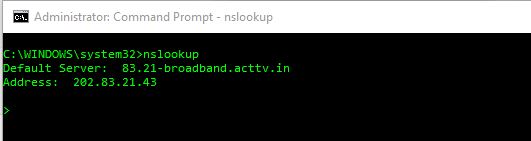
Nslookup to know your default DNS server and IP address.
Just type nslookup in you command prompt and you will get your default DNS server and its IP address:


Nslookup for any web servers IP address
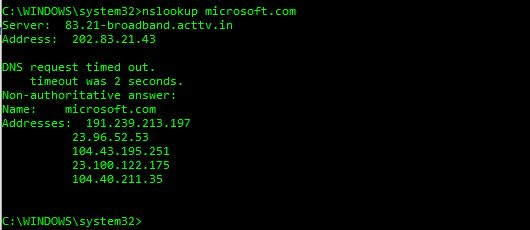
Let’s say I want to know the IP address of Microsoft’s web servers. So just nslookup microsoft.com in you command prompt and you will get the DNS server name and its IP address:


In the above screen, you can see that there is a term called Non-authoritative answer. This answer is shown when the reply comes from a source which is not considered authoritative for the domain which it’s returning a record for.

For example, in the above query, the response is coming from my default DNS server which would come as non-authoritative because it is not listed in the list of nameservers for microsoft.com.
Different types of Nslookup commands:
In the table below, I am going to list out some of the famous Nslookup commands which can be used for different purposes. I will also list out a few examples in the beginning and then I will finally list out those all in a table at the end.

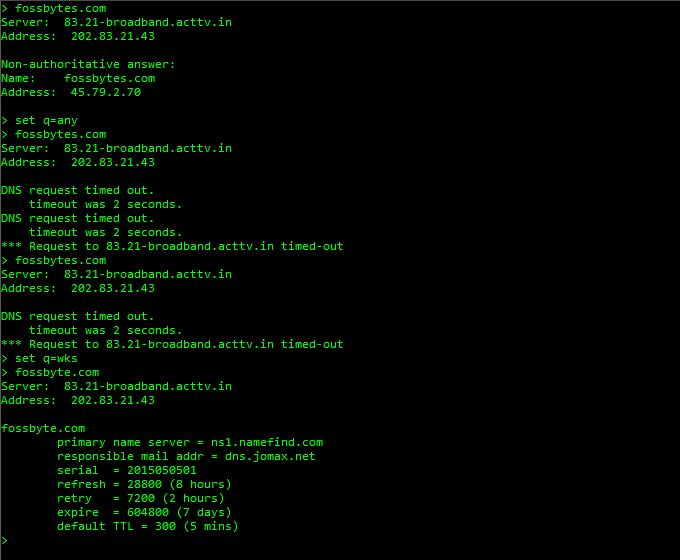
Nslookup example with a parameter:


Let’s understand the above Nslookup query first.
In the above query, the command follows this way:
nslookup <Enter>
> set q=a <Enter>
> fossbytes.com <Enter>

Now let’s see how to execute by setting different kinds of parameters (the list of which will be given in the table in the end) and do various DNS queries.


Now if you compare the above image to its previous image, you can see that I have continued setting the different type of DNS queries on the same screen in continuation.
In the following image, I am continuing my different types of queries in the same screen and this time I am querying for Well-Known Service (WKS) for our website fossBytes.com.


This query is showing me some more data about fossBytes like primary server name, refresh time, default TTL, mail address etc.

You can also perform many other queries the same way for which I am providing a table below:
Set queriesDescription
set q=aTo know the IP address
set q=anyTo know all types of data
set q=CNAMETo know the Canonical name
set q=MBTo know the Mailbox domain name
set q=MXTo know about the mail exchange server
set q=SOATo know about the Start-Of-Authority of a DNS Zone
set q=WKSTo know about the Well Known service
Back to Top